The 6 Best Image Text Editors in 2026: An In-Depth, Honest Comparison
An image text editor, in the sense this guide uses, is a tool that changes text already printed inside an image. It replaces, corrects or removes those words and keeps the surrounding pixels, font and lighting intact. The need usually looks like this: the poster has gone to print, the promo graphic is scheduled, and one word on it is wrong. The designer who made it is away, the layered source file is on their laptop, and all you have is a flat JPEG. Most tools called “image text editors” can only put new text on top of that picture. The six below can change the words that are already in it.
A disclosure before the list: our team builds four of the six tools in this guide. They are EditTextImage (this site), RemoveTexts, MagicRemover and SparkPix. To make that useful rather than awkward, each entry covers what the tool is built for, where it struggles and when you should use something else, and that applies to our own tools as well as to Canva and Photoshop. Prices were checked on each vendor’s own pages in September 2026.
This guide explains what the job involves and how we judged the tools, then looks at each of the six in turn. After that it works out what an edit really costs, which kinds of text every tool still struggles with, and a workflow that gets better results from any of them.
Two kinds of product share one name
“Image text editor” covers two different kinds of product, and mixing them up is the most common way to waste an afternoon on this job.
Overlay editors add a new text layer above the picture. Picsart, most meme makers and Canva’s regular text tool all work this way. They are excellent for captions, memes and thumbnails, where the words are new. They can’t change words that are already part of the image, because those words are no longer text. Anything you type goes on top, and the old wording is still there underneath. We explain that split in more detail on our photo text editor page.
In-place editors change the words that are already there. When a design is exported to JPEG or PNG, its words become pixels, so the tool has to do three separate jobs:
- Find the pixels that make up the words you want to change.
- Remove them and rebuild the background that was behind them. This step is called inpainting.
- Re-render the new words in matching type: the same font, weight, color, spacing and perspective, under the same lighting.
The third job is where tools differ most visibly. A replacement in the right font that ignores the lighting looks pasted on. A replacement that matches the lighting but drifts to a similar font looks slightly wrong to anyone who knows the original. We wrote up how matching a font from pixels works in how to match the font in an image. Every tool in this guide does all three jobs. They differ in how much of the work is automatic, how much is left to you, and how much of the rest of the image the tool is willing to touch.
Why this got easier in 2025 and 2026
The biggest change in the last two years is that general-purpose image models learned to write. Until recently, AI image models were famously bad at letters, and a garbled shop sign was the easiest way to spot an AI picture. The current editing models, including Google’s Nano Banana family, OpenAI’s GPT Image models and FLUX Kontext, can render short, legible text. They can also follow an instruction like “change this word to that word.”
That changed the question from “can AI do this?” to “how predictable is it?” A general model given a loose instruction may also tidy the background, move a shadow or re-render a face. Dedicated text tools wrap the same class of model in tighter constraints: find this exact string, replace it, and leave everything else alone. Prompt-based editors give you more freedom and less predictability. Manual tools like Photoshop are fully predictable, and the cost is your time. The six tools below sit at different points on that line.
How we judged the six tools
This is a comparison based on criteria, not a lab benchmark. We didn’t run a controlled test of all six tools on a shared set of images. It’s also worth being wary of anyone who publishes precise accuracy scores for tools they don’t build. The comparison uses each tool’s documented workflow, its published limits and its prices, all checked on the vendors’ own pages in September 2026. For the four tools we build, it also draws on how they actually work. These are the criteria:
- Font fidelity. Does the replacement use the same typeface, weight, spacing and effects, or only a lookalike?
- Background reconstruction. Is the surface behind the old letters rebuilt cleanly, including texture and gradients?
- Geometry. Does the new text follow the perspective, rotation and curve of the surface, or does it sit flat on a tilted sign?
- Collateral change. Does anything outside the text move? Generative tools re-render the whole image, and some constrain that better than others.
- Effort. How many steps does an edit take, how much skill does it need, and how long does it take?
- Real cost. What does one edit cost on the packs people actually buy, and what does the free tier actually let you do?
- Guardrails. Does the tool refuse ID cards and official documents? A tool that will happily edit a passport isn’t one you want your work associated with.
The 6 best image text editors in 2026
The list runs from the most specialized tool to the most general. It isn’t a score, and the right pick depends on the job:
- EditTextImage: changing one line on a finished image.
- RemoveTexts: mostly removing text, with occasional swaps.
- MagicRemover: free daily erasing, with paid text swaps.
- SparkPix: text as one of several changes to a photo.
- Canva Grab Text: images that are going into a Canva design anyway.
- Adobe Photoshop: pixel-level control and print work.
1. EditTextImage: best for changing one line on a finished image
EditTextImage is a web-based AI tool built for one job: replacing text in an image you already have, in the same font, color and perspective. You upload a JPG or PNG of up to 10 MB. Then you type the text as it currently appears, type what it should say, and run the edit. The tool finds that string, removes it, rebuilds the background, and renders the new words by reading the typography from the surrounding pixels. There’s no canvas, no layers panel and no font picker, so the only skill it needs is typing two lines of text. A standard edit usually takes 30 to 60 seconds. A Pro mode costs 1.5 credits, takes 60 to 90 seconds, and is aimed at the hardest typography, such as logos, game interfaces and bold outlined type.
 Before
 After
AfterIts strongest case is a finished image whose source file is out of reach. That covers a promo graphic with an old discount, a menu with last season’s price, a screenshot with a typo, or an AI-generated image where the model mangled a word. It also handles photos where the text sits at an angle under real lighting, which is where overlay approaches fall apart.
 Before
 After
AfterIt also has a translation mode. You pick one or more of 20 target languages, and it re-renders the text in each one at one credit per language. App developers use it to produce localized App Store screenshots without rebuilding them in a design tool, and online sellers use it to translate product images.
 Before
 After
AfterIt runs in the browser, and it’s also available as an iPhone app and a Chrome extension.
Where it struggles. It’s a replacement engine, so it can’t add text to an empty area of a picture. It has no batch mode yet, and PDFs need to be exported to JPG or PNG first (HEIC photos and anything over 10 MB are converted and shrunk in the browser, so those two are no longer on you). Long paragraphs of body copy are the hard case, and so is ornate, handwritten or very low-resolution text, where the match is approximate.
Pricing. The first edit is free, with no watermark. After that, one-time credit packs cost $14.90 for 40 credits, $26.90 for 100 or $39.90 for 180. That works out to between $0.37 and $0.22 per standard edit, and some regions pay less (see pricing). There’s no subscription, and an edit that fails is refunded automatically.
Skip it if you’re adding captions or overlays, where Canva is the better fit. Skip it too if you want manual control over every pixel, which is Photoshop’s job. If the lowest possible price per edit matters most, check the cost section below.
2. RemoveTexts: best when you mostly need text gone
RemoveTexts is a removal-first toolbox. Most of its tools erase text, watermarks and objects, and its Edit Text mode swaps words from the same account. You upload a JPG, PNG or WebP file, type the text to find and the text to replace it with, and the AI generates a replacement. It analyzes the original’s font family, weight, size, color, shadow and perspective to match them. The site quotes under 30 seconds per edit.
Its own guidance is that it works best on small edits, and that larger replacements go better when they’re split into several passes. It also publishes production numbers, which few tools in this category do: 92% of 264 edit runs completed successfully as of April 2026. That’s a completion rate, not a quality score, but it’s more transparency than most of the category offers.
The rest of the account covers the removal side. That includes automatic text removal, watermark removal, a brush eraser for anything the automatic tools miss, and an image translator.
Where it struggles. The free tier is for judging quality, not for finishing a job, because free results carry a watermark. Its edit page also rules out ID cards and official documents, which is a deliberate choice rather than a limitation.
Pricing. An edit costs one credit. New accounts get free credits, with watermarked results. Paid packs are one-time purchases with regional pricing. At the highest regional tier they cost $7.90 for 25 credits, $14.90 for 75 or $29.90 for 200, which is $0.32 down to $0.15 per edit. Other regions pay less.
Skip it if you need a clean result without paying anything, or if you already know the job is one precise text change and you’d rather use a free edit that has no watermark.
3. MagicRemover: best free eraser, with paid text swaps
MagicRemover is a free AI object remover that also has a paid in-image text editor. Removal is where it’s generous. You get two free removals a day without signing up, and two more when you sign in with Google. The counters reset at midnight UTC, and there’s no watermark and no credit card. That covers erasing text, people, stickers, clutter and watermarks from images you have the rights to.
Text replacement costs 3 credits per edit. You type the words as they appear and what they should say, or you leave the second field blank to delete the text. Its own documentation points out that the free Remove Text tool usually does a cleaner job of plain deletion. Failed edits are refunded.
Its guidance on getting good results is unusually candid, and the advice applies to every tool in this guide:
- Type the text exactly as it appears, including capitals and punctuation, because the model finds the text by matching it.
- Change one string per pass. A single instruction with three swaps gets muddled.
- Keep the replacement close to the original length. Fitting a much longer phrase into the same space forces the model to shrink or crowd the letters.
- Short, high-contrast text on a flat surface works best. Small text, heavy texture and strongly curved surfaces are the hard cases.
- The whole image is re-rendered rather than patched, so pixels outside the text come back “very close, not pixel-identical.”
It’s also clear about why editing costs money while erasing is free. Erasing only rebuilds the surface where the letters were. Replacing text means rendering new letters that match the original, which needs a much larger model that’s billed per call. The same account also clears subtitles and text from video, at 2 credits per second of footage.
Pricing. Removal is free within the daily limits. Credit packs cost $9.90 for 330 credits, $29.90 for 1,200 or $59.90 for 3,000. At 3 credits per edit, that’s about $0.09 down to $0.06 per text edit, the lowest of the credit-based tools here. Credits never expire.
Skip it if one image needs several separate changes, because each one is its own pass. Also skip it if the pixels outside the text must stay identical, for example on an archival image.
4. SparkPix: best when the text is one of several changes
SparkPix is a prompt-based AI photo editor: you describe the change in plain English, and Google’s Nano Banana image models apply it. There are no find-and-replace fields for text. Instead, you write an instruction such as Change "SALE" on the red banner to "NEW" and keep everything else identical. Three habits make prompts like that more reliable. Quote the exact text, say where it is, and say what must not change.
Its advantage is that the text edit can be one line of a bigger request. In the same instruction you can swap the background, remove a stray object and fix the lighting, which would take three passes in a dedicated text tool. You can also choose between models. The higher-quality Nano Banana Pro costs more credits per image. The same account covers photo restoration, object removal, background changes, upscaling and AI headshots.
Where it struggles. Matching fonts isn’t a dedicated feature. The model infers the typography from the picture and your prompt, and a loose prompt can change more than the text. Always compare the result with the original before you use it.
Pricing. You get 5 free credits when you sign up, plus one free use a day. Paid packs are one-time purchases: $9.99 for 350 credits, or $29.99 for 1,200. Most edits use about 5 credits, so that’s roughly 70 or 240 edits, and a first purchase gets 50% bonus credits. Credits are valid for a year, and failed generations are refunded.
Skip it if exact typography is the whole point. For one wrong word where nothing else should change, a dedicated text tool gives more predictable results.
5. Canva (Grab Text): best if the image is going into a Canva design anyway
Canva’s Grab Text turns the text inside an uploaded image into an editable Canva text box and leaves the rest of the picture as an image. To use it, select the image and choose Edit, then Tools, then See all, then Grab Text. Select the words you want, or drag to select several blocks. From then on it’s ordinary Canva text: you can change the wording, font, size, color and effects, animate it, and resize the design for other formats.
The key difference is what you get back: a live text layer, not a re-rendered part of the image. On flat graphics that’s an advantage, because the text stays editable and you can keep revising it without starting over. On photos it’s a limitation. A text box doesn’t pick up the scene’s lighting, texture, grain or perspective, so on a photographed sign it tends to look pasted on.
Canva’s help center lists the current limits. Grab Text works best on straight, unskewed text. Enhanced formatting such as bold, italic and underline isn’t available yet. Text outside your selection can get distorted, and traces of the old text can stay behind. The feature isn’t available in China, or in Canva Docs and video designs. We compared the two approaches directly in Canva alternative for text editing.
Pricing. Canva has a free plan, and Grab Text is available on eligible plans. Canva Pro cost about $18 a month on monthly billing when we checked, and less if you pay annually. If you already pay for Canva, Grab Text doesn’t cost anything extra per edit.
Skip it if the text is on a photo taken at an angle, uses stylized display lettering, or has to keep its exact original typeface.
6. Adobe Photoshop: best for pixel-level control and print work
Adobe Photoshop gives you more control over editing text in images than any other tool here, and you do most of the work yourself. A careful edit usually looks like this:
- Select the old text with the Object Selection or Lasso tool, and expand the selection by a few pixels.
- Remove it with the Remove tool, Content-Aware Fill, or Generative Fill with an empty prompt, which rebuilds the background.
- Identify the typeface with Type → Match Font. It suggests matches from your installed fonts and Adobe Fonts, and works best on Latin-script text.
- Set the new text with the Type tool, then use Edit → Transform → Perspective or Warp to fit the geometry of the surface.
- Blend the text in by adding matching grain or noise, softening edges that look too crisp, and matching color and shadow.
In the desktop app, Generative Fill now lets you choose partner models such as Google’s Nano Banana and FLUX Kontext Pro as well as Adobe Firefly. The partner models count as premium features and use more generative credits than Firefly does.
What you get for the effort is total control: layers, non-destructive editing, any resolution, print color management, and a say over every letter. What it costs is skill and time. A careful manual text edit often takes a skilled user ten minutes or more. We broke down where the crossover sits in edit text in image vs Photoshop.
Pricing. Photoshop is subscription-only. Adobe’s Photography plans, the cheapest way to get it, run from roughly $11 to $22 a month in 2026, depending on storage and AI credits.
Skip it if you have one wrong word and don’t already know Photoshop. It’s the right tool for brand-critical print work and too much tool for a typo.
What an edit really costs
Among the four credit-based tools, the price of one edit varies about sixfold, from $0.06 to $0.37. The chart and table below work it out from each vendor’s published credit packs, excluding free tiers, first-purchase bonuses and regional discounts.
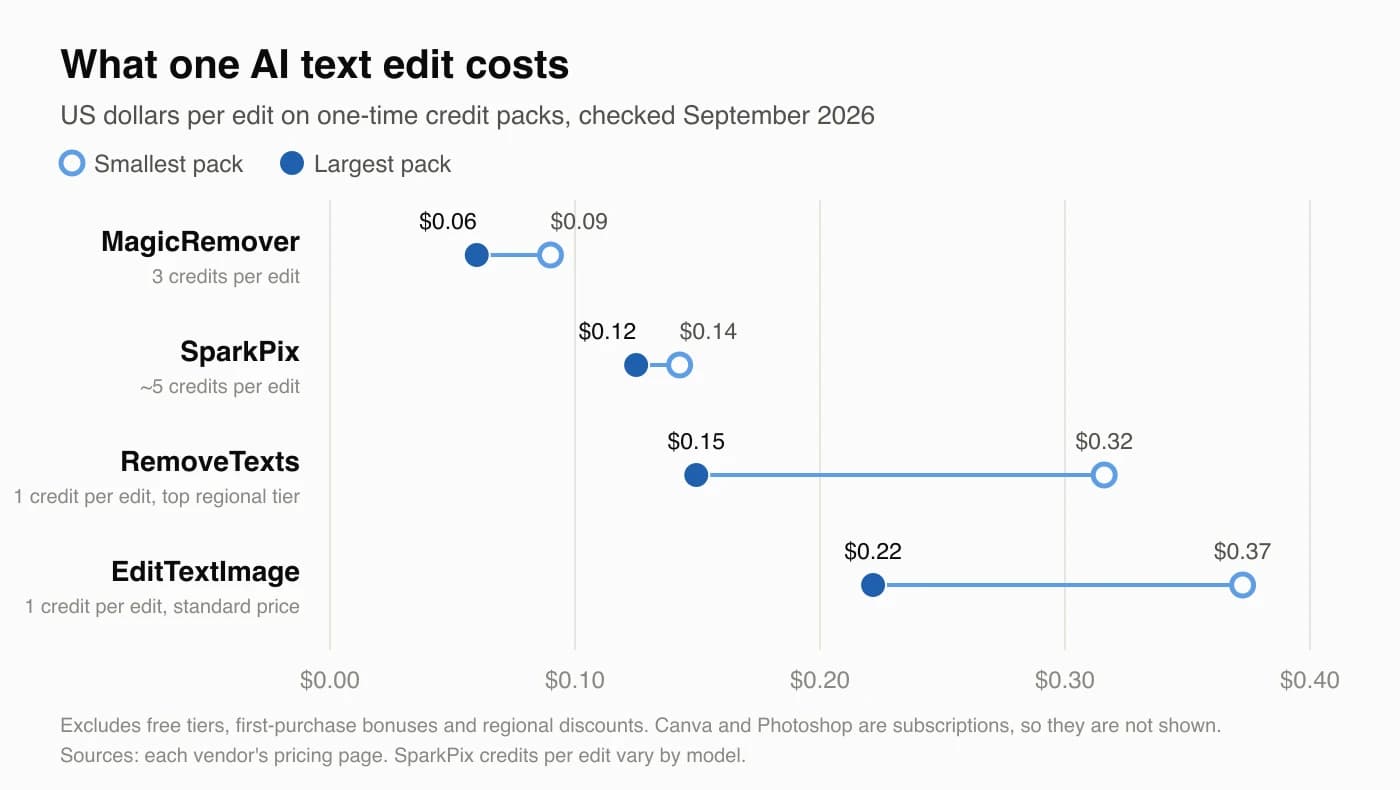
| Tool | Credits per edit | Smallest pack | Per edit | Largest pack | Per edit |
|---|---|---|---|---|---|
| MagicRemover | 3 | $9.90 / 330 | $0.09 | $59.90 / 3,000 | $0.06 |
| SparkPix | ~5 (varies by model) | $9.99 / 350 | $0.14 | $29.99 / 1,200 | $0.12 |
| RemoveTexts | 1 | $7.90 / 25 | $0.32 | $29.90 / 200 | $0.15 |
| EditTextImage | 1 (Pro mode 1.5) | $14.90 / 40 | $0.37 | $39.90 / 180 | $0.22 |
| Canva | — | Subscription, about $18/month (Pro, monthly billing) | |||
| Photoshop | — | Subscription, roughly $11–22/month (Photography plans) | |||
RemoveTexts is shown at its highest regional price tier and EditTextImage at its standard price. If you already pay for Canva or Photoshop for other work, the extra cost per text edit is effectively zero. If you’d subscribe only for this job, it’s the most expensive route by far.
The price per edit is only half of the real cost. The other half is how many attempts it takes to get a usable result. A $0.06 edit you run four times costs more than a $0.22 edit that works first time, and automatic refunds cover errors, not results you don’t like. We don’t have an independent benchmark of first-try success across these tools, so the fair advice is practical. Run the same real image through the free tiers of two tools before you buy credits.
The free tiers differ more than the prices do:
- EditTextImage: one free edit, with no watermark.
- RemoveTexts: free credits for new accounts, but the results are watermarked.
- MagicRemover: four free removals a day across the two counters. Text edits are paid.
- SparkPix: 5 credits at sign-up and one free use a day.
- Canva: a free plan. Grab Text depends on your plan.
- Photoshop: a trial only.
The hard cases: text every tool still struggles with
Some text is hard for every tool in this guide, including ours, because the difficulty comes from the image and not from the software. If your image falls into one of these groups, expect an approximate result and check it more carefully:
- Small text. A tiny line of fine print gives the model very few pixels to read and very few to draw into. Use the highest-resolution original you have, and never work from a screenshot of a screenshot.
- Curved and wrapped surfaces. On mugs, bottles, cans and fabric folds, the letters have to bend with the surface. Results are approximate at the edges of the curve.
- Handwriting and custom lettering. There’s no font to match, so the tool reconstructs the style. The more distinctive the lettering, the more visible the difference.
- Non-Latin scripts. Chinese, Japanese, Arabic, Devanagari and other scripts work, but letter shapes are more likely to be approximated. Have a native reader check the result before it goes anywhere important.
- Long paragraphs. Every line is another chance for a small error. For a full block of body copy, rebuilding the design is usually faster than patching the image.
- Big changes in length. Turning “Sat” into “Saturday” in the same space forces the tool to shrink or crowd the letters. Keep replacements close in length, or accept that the layout will shift.
- Heavily compressed JPEGs. Compression artifacts around letters get read as part of the letters or the background, and they come back in the result.
- Text over faces or busy textures. The background behind the old letters has to be guessed, and guesses are most visible on skin, patterns and fine detail.
A workflow that gets better results in any tool
The same few habits improve results in every tool on this list, from EditTextImage to Photoshop:
- Start from the best original you have. Use the highest-resolution, least-compressed version, not a copy saved from a chat app.
- Type the existing text exactly. Match capitals, punctuation and line breaks, because automatic tools find text by matching the string.
- Make one change per pass. Three small edits in a row beat one instruction with three changes in it.
- Keep the replacement close in length. If the new wording is much longer, shorten it or accept a smaller font.
- Check the result at 100% zoom. Look at the edges of the letters, the background just around them, and anything else fine-grained in the image, because generative tools re-render the whole picture.
- Keep the original file. Save the edit as a new file, so you can always go back.
- Match the finish to where the image is going. For web and social, an AI edit is usually final. For large-format print, it’s reasonable to do a final check in Photoshop.
Which tool for which job
- A typo on a finished poster, flyer or slide: EditTextImage. MagicRemover is the lower-cost option if you’re comfortable making one change per pass.
- A new price or date on a product photo or menu: EditTextImage or MagicRemover.
- Localized App Store screenshots or product images: EditTextImage’s translation mode, or RemoveTexts’ image translator.
- Garbled text in an AI-generated image: EditTextImage, typing the correct word over the mangled one. Use SparkPix if you also want to change other parts of the image.
- Captions, watermarks or stray text you just want gone: MagicRemover’s free daily removals, or RemoveTexts.
- A text change plus a background swap or clean-up: SparkPix.
- A social graphic you’ll keep revising: Canva’s Grab Text.
- Brand-critical print work: Photoshop.
- Memes and captions where the words are new: none of these. Use an overlay editor.
If your images are mostly real photographs rather than designed graphics, our roundup of photo text editors covers phone apps like Google Photos and Snapseed as well.
What none of these tools should be used for
Changing the text on ID cards, certificates, receipts, contracts or chat screenshots so they pass as genuine is fraud in most places, and reputable tools prohibit it. EditTextImage and RemoveTexts both rule out ID cards and official documents; ours are listed in our acceptable use policy. The same care applies to marketing: if you edit a price or a date in an ad, the new one has to be true. For everything else, edit only images you own or have the right to modify. Your own posters, product photos, screenshots and AI-generated art are fine. Someone else’s copyrighted artwork usually isn’t.
Frequently asked questions
Can I edit text in an image without Photoshop?
Yes. Browser-based AI editors like EditTextImage, RemoveTexts and MagicRemover replace text in a flat JPG or PNG without layers, font files or design skills. You type what the image says now and what it should say, and the tool rebuilds the background and renders the new words to match. Photoshop is still worth it if you need manual control at print resolution. For a typo, a date or a price on a finished graphic, it’s more tool than the job needs.
Can AI keep the same font when it replaces text?
Usually, yes, but how close it gets depends on the lettering. AI text editors read the typography from the pixels themselves: letter shapes, weight, color, spacing, and effects like shadows or outlines. On standard typefaces the match is usually indistinguishable at normal viewing size. On custom hand lettering, very small text or heavily textured surfaces it’s approximate. That’s true of every tool in this list, including ours. Zoom in on the result before you print it.
Is there a free way to edit text in an image?
There are a few, and each has a catch. EditTextImage’s first edit is free with no watermark. SparkPix gives 5 credits at sign-up plus one free use a day. RemoveTexts gives free credits, but the results are watermarked. MagicRemover’s free daily allowance covers removing text, not replacing it. Photopea, which isn’t in this list, is completely free if you’re willing to do the whole edit by hand. The most reliable free test is one edit on your own real image, not a demo picture.
What’s the difference between removing and editing text in an image?
Removing text only has to rebuild the background where the words were. Editing text has to do that and then render new words that match the original type. That extra step is why removal is often free or cheap, as with MagicRemover’s daily removals, and replacement costs credits everywhere. If you only want the words gone, use a removal tool. It’s faster, cheaper and usually cleaner.
Why does the rest of my image change slightly after an AI text edit?
Most AI text editors re-render the whole image rather than patching only the letters, so fine detail outside the text can shift very slightly. Dedicated tools tell the model to leave everything else alone, and in practice the composition, colors and subject come back looking the same. They’re very close, but not pixel-identical. If a use needs the other pixels to stay exactly as they were, such as archival or evidentiary images, don’t use a generative edit.
Can I edit text in a screenshot or a PDF?
Screenshots, yes. A screenshot is a flat image, and interface text on a plain background is one of the easier cases. PDFs depend on how they were made. If the PDF contains real text, edit it in a PDF editor, which is cleaner than any image tool. If it’s a scanned page, export that page as a JPG or PNG first and edit the image. In either case, don’t edit documents, receipts or chat screenshots so they pass as real.
Photopea, mentioned above as the fully free manual option, is compared with the automated approach in Photopea vs EditTextImage.
Fix it in your browser — free, no Photoshop
EditTextImage replaces or repairs text directly on a finished image while keeping the original font, color and background intact. First edit is free.