Best AI Tools to Edit Text on a Poster in 2026: 5 Tested on 6 Poster Fixes
We used five AI tools to edit text on a poster, six times each, and every tool spelled every edit correctly. We make EditTextImage, an AI tool that changes the words in a finished image while keeping their original look, and our team also runs RemoveTexts and MagicRemover. So every raw result is on this page, including where our own tool fell short.
With spelling solved, two things decide which tool suits your poster: how big the file is that comes back, and whether the tool quietly changes something you didn’t ask it to. In short:
- Going to print: EditTextImage or RemoveTexts. They returned the largest files, but even those fall short of A4 at 300 dpi, so paste the edited words back onto your original (how, below).
- Posting online, no budget: the Gemini app. Six for six, free, but it recoloured a badge and returns smaller, softer JPEGs.
- Nothing else may change: ChatGPT. It was the only tool with no unrequested change anywhere in our test.
- Cheapest per edit: MagicRemover, at 6 to 9 cents, but check the lettering: it gave our script headline a glossy sheen.
Poster text editors compared
| Tool | Best for | New text right | File back, 1080 × 1350 poster | File back, A4 at 300 dpi | Changes nobody asked for | Cost per edit |
|---|---|---|---|---|---|---|
| EditTextImage | Print files, no prompt | 12 of 12 runs | 1856 × 2304 PNG | 1696 × 2528 (2:3) | A4 refit to a narrower frame | $0.22–$0.37 |
| ChatGPT | If you already pay for it | 6 of 6 | 1122 × 1402 PNG | 1054 × 1492 | None we could find | Plus plan, $20/month |
| RemoveTexts | Same files as ours, cheaper | 6 of 6 | 1856 × 2304 JPEG | 1696 × 2528 (2:3) | A4 refit to a narrower frame | $0.15–$0.32 |
| Gemini app | A free one-off for online use | 6 of 6 | 921 × 1152 JPEG | 864 × 1224 | Badge recoloured | Free, with daily limits |
| MagicRemover | Lowest cost per edit | 6 of 6 | 912 × 1136 JPEG | 882 × 1248 | Glossy sheen on the script headline | $0.06–$0.09 |
The A4 original is 2480 × 3508 pixels. Prices are per edit on each vendor’s smallest and largest credit packs, as listed on 8 November 2026.
How do you choose an AI tool for poster text?
Start from where the poster is going, not from the tool. A poster for Instagram or a website only needs to look right on a screen, and every tool we tested is good enough for that. A poster going to a printer needs enough pixels for its paper size: about 2,480 pixels across for A4 at 300 dpi, the resolution most print shops ask for. No tool we tested returns that, so for print you are choosing the tool whose result needs the least repair.
Then look at how the tool works. EditTextImage, RemoveTexts and MagicRemover are find-and-replace tools: you type the text as it appears and what it should say. Gemini and ChatGPT are chat assistants: you describe the change in a sentence. Both kinds got every word right here. The chat assistants are free or already paid for if you use them; the find-and-replace tools charge per edit but need no prompt writing.
How we tested
We designed four posters and rendered them ourselves with known fonts, so for each job we could also render the exact correct result. Each job is a kind of fix people actually make on finished posters:
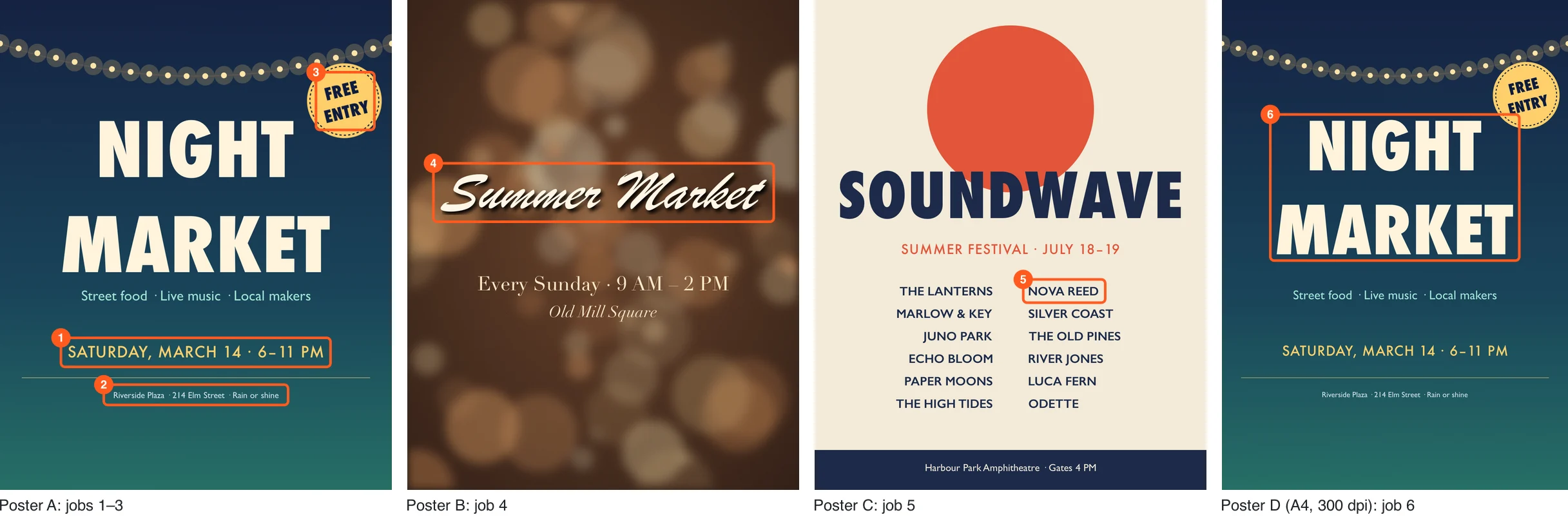
| Job | What | Change | Why it is hard |
|---|---|---|---|
| 1 | Date line | MARCH 14 → MARCH 21 | Medium text, letter-spaced caps |
| 2 | Fine print | 214 Elm Street → 48 Harbor Road | 24 px text on a 1,350 px poster |
| 3 | Rotated badge | FREE ENTRY → OPEN LATE | Two lines on a sticker turned 14° |
| 4 | Script headline | Summer Market → Autumn Market | Joined brush script with a drop shadow, over a blurred photo |
| 5 | One name in a lineup | NOVA REED → IVY STONE | Eleven other names must stay as they are |
| 6 | Print-size file | NIGHT MARKET → NIGHT BAZAAR | Poster A again, at A4 300 dpi (2480 × 3508) |
The tools were EditTextImage (Fast mode, two runs per job, to show how much our own results vary), RemoveTexts, MagicRemover, the Gemini app and ChatGPT on a Plus account. The chat assistants got a new chat for every job and the same sentence: Edit this image: change the text "MARCH 14" to "MARCH 21". Keep everything else in the image exactly the same. For the badge and the lineup we added where the text was (“on the round badge”, “in the lineup”), and for the A4 file the full result (“so it reads NIGHT BAZAAR”). All runs were on 12 November 2026, from one connection in Asia.
For every result we checked the new words letter by letter, compared every pixel outside the edited area with the original (allowing for a shift of a few pixels), checked the eleven untouched names in the lineup by eye, and recorded the size and format of the file that came back. This is the poster-specific companion to our general test of the same five tools, which covers photos, signs and app screens.
What the test showed
Every tool got every word right
Thirty-six edits, thirty-six correct spellings. That includes the jobs we expected to break something: a 24-pixel address line, two lines of condensed type on a sticker turned 14 degrees, a joined brush script, and one name in a column of twelve. None of the eleven other names in the lineup changed in any tool. On the evidence of this test, getting the words right on a poster is no longer what separates these tools.
Two tools changed things nobody asked for
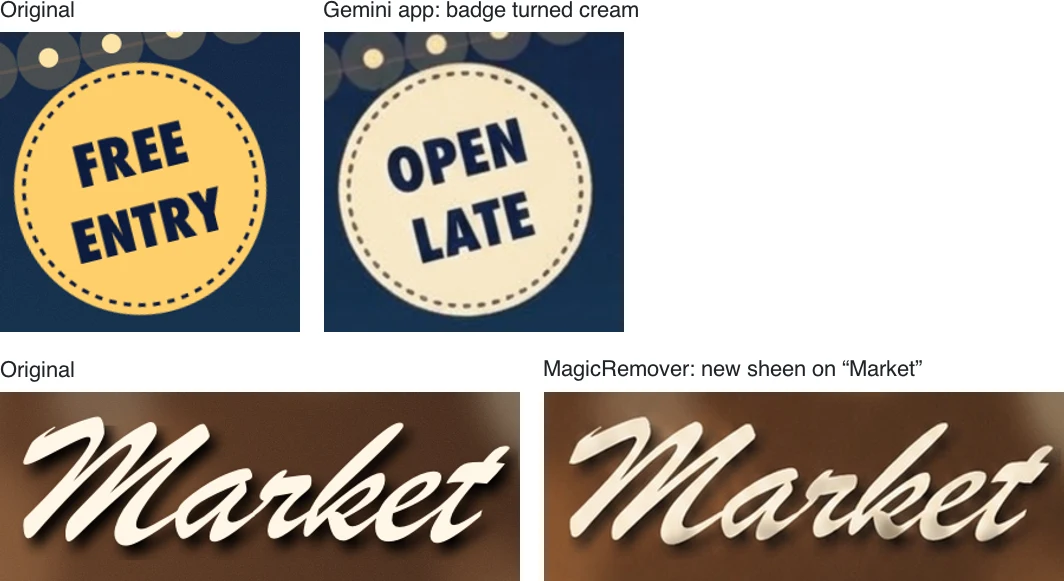
Asked to reword the badge, the Gemini app also changed its fill from yellow to cream. MagicRemover, asked to change “Summer” to “Autumn”, gave the whole headline a glossy, bevelled sheen, including “Market”, which it was told to leave alone. Both results look plausible on their own, which is the risk: you only notice next to the original.
ChatGPT, RemoveTexts and EditTextImage left everything outside the edited words as it was on the four screen-size posters. On the A4 file, though, our own tool and RemoveTexts changed the frame, which is the next point.
No tool returned a print-size file
Each tool returns its own standard image size, whatever you upload. For the A4 poster at 300 dpi, that meant every result came back smaller than the original, from 1,696 pixels wide down to 864. Printed at A4, that is 205 dpi at best and 104 dpi at worst. Large headlines survive that; small print does not.
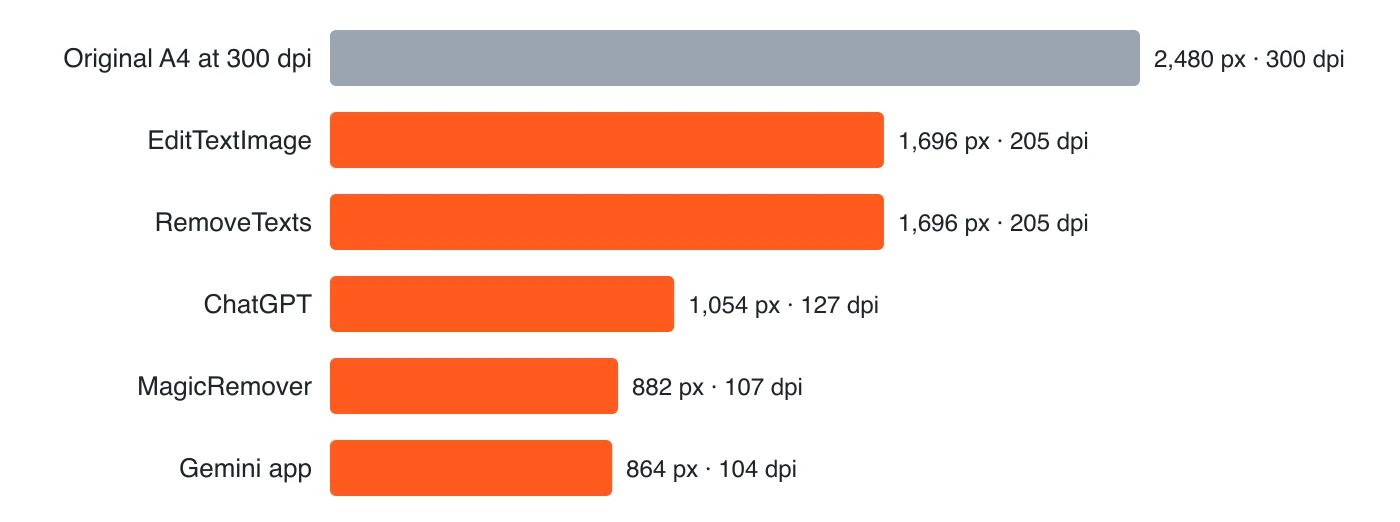
EditTextImage and RemoveTexts kept the most pixels, but their file is a 2:3 frame, about 5% narrower than A4, with the layout refitted to it. In one of our two runs the headline came back slightly larger than the original. So you can’t simply stretch the result back to A4 without distorting it. ChatGPT, Gemini and MagicRemover kept the A4 shape but returned far fewer pixels. For a screen-size poster the picture is reversed: EditTextImage and RemoveTexts returned 1856 × 2304, larger than the 1080 × 1350 original. That is the size the model produces, not extra detail.
The fix that works with any tool is to paste only the corrected words back onto your original:
- Edit the poster in the AI tool and download the result.
- Open your original, full-resolution file in a layer editor such as Photopea (free) or Photoshop.
- Paste the AI result on top, scale it until it lines up with the original, then mask everything except the changed words.
- Export at the original size. Only the edited words are at the lower resolution, so check that they are sharp enough at the printed size.
The 300 dpi figure is the usual print-shop guideline; Wikipedia’s dots per inch article explains how pixels translate into print size.
Speed
EditTextImage took 40 to 56 seconds per edit in this test, measured from our own task log. We did not time the other tools this round. In our earlier general test, Gemini took 10 to 18 seconds, ChatGPT about 20, MagicRemover 33 to 57 and RemoveTexts 51 to 150.
The tools, one by one
EditTextImage: best for print files without writing prompts
Best for: posters you will print or reuse, when you want to type the old and new text instead of writing a prompt.
Twelve runs, twelve correct edits, and nothing outside the edited words changed on the four screen-size posters. Our poster editor returned the largest files in the test, 1856 × 2304 PNGs for the 1080 × 1350 posters and 1696 × 2528 for the A4 one. Edits cost $0.22 to $0.37 depending on the credit pack, with one free edit on sign-up at a smaller size.
Limits: the A4 file came back in a narrower 2:3 frame, and one of the two runs enlarged the headline slightly, so for print use the paste-back method above. Each edit took 40 to 56 seconds.
ChatGPT: best when nothing else may change
Best for: people who already pay for ChatGPT and want the safest result.
Six for six, and the only tool with no unrequested change anywhere: the badge stayed yellow, the script kept its flat finish, and the lineup was untouched. For the screen-size posters it returned PNGs a little larger than the original (1122 × 1402).
Limits: the A4 poster came back at 1054 × 1492, about 127 dpi in print. In our earlier test, the free plan stopped after five image edits in a day; this time we used a Plus account ($20 a month).
RemoveTexts: the same files as ours, for less
Best for: large files at a lower price per edit.
Six for six, with the same file sizes as EditTextImage, including the narrower 2:3 frame for the A4 poster. Edits cost $0.15 to $0.32.
Limits: the download is a JPEG even though the file name ends in .png, and in our earlier test it was the slowest tool and left one typo unfixed.
Gemini app: best free option for online posters
Best for: a one-off fix to a poster you will post online, at no cost.
Six for six, free, and in our earlier test the fastest tool. To keep the largest file it offers, use its Download full size image button.
Limits: it changed the badge colour, every result was a JPEG about 15% smaller than the original, and fine print came back visibly softer. The A4 poster returned at 864 × 1224, about 104 dpi in print.
MagicRemover: lowest cost per edit
Best for: many quick edits on posters for screens, when cost matters most.
Six for six, at 6 to 9 cents per edit (3 credits). Results come back as JPEGs a little smaller than the original.
Limits: it added a glossy sheen to the script headline, so compare the lettering with the original before you use the result. The A4 poster returned at 882 × 1248.
Canva and Photoshop
We did not run either in this test. If your poster was made in Canva, open the original design and edit the text there; nothing beats the live text layer. For a finished image, Canva’s Grab Text (a Canva Pro feature) turns text in the image into an editable text box. Photoshop does it by hand with Generative Fill, Match Font and the Type tool, at any resolution, which makes it the most dependable route to a print-ready file if you have the time and the skills. Both are compared in more detail in our general roundup.
Which tool for your poster?
- Event poster with a wrong date or address, going to print: EditTextImage or RemoveTexts, then paste the corrected line back onto the original file. Our step-by-step guide to fixing a typo on a finished poster covers the other options too.
- Poster for Instagram or a website, once: the Gemini app, checking the colours against the original.
- Brand poster where nothing else may change: ChatGPT, or any tool with a side-by-side check before you publish.
- Many small edits for screens: MagicRemover, checking the lettering.
- You still have the design file: edit the file, not the image.
What you shouldn’t edit
Edit posters you made or have the right to change. Tickets, certificates and official notices are not posters, and changing their text so they pass as genuine is fraud; our acceptable use policy lists what we don’t process. If you change a price or a date on a promotional poster, the new one has to be true.
Frequently asked questions
What is the best AI tool to edit text on a poster?
It depends on where the poster is going. In our test of five tools on six poster fixes, every tool spelled every edit correctly, so the choice comes down to the file you get back and what else changes. For print, EditTextImage and RemoveTexts returned the largest files (1,696 pixels wide for an A4 poster, about 205 dpi). For a poster you will post online, the free Gemini app is enough, though it recoloured one badge and returned smaller, softer JPEGs. ChatGPT made no unrequested changes at all.
Can ChatGPT edit the text on a poster?
Yes. Attach the poster and quote the old and new text, for example: change the text "MARCH 14" to "MARCH 21" and keep everything else exactly the same. It got all six of our poster fixes right, including a script headline and one name in a list of twelve, and changed nothing else. It returns a PNG at roughly the original size for a social-media poster, but an A4 300 dpi poster came back at 1,054 pixels wide, which is about 127 dpi in print.
Can I edit the text on a poster for free?
Yes. The free Gemini app handled all six of our poster fixes, with two catches: it changed the colour of a badge we only asked it to reword, and every result came back as a JPEG about 15% smaller than the original. EditTextImage gives one free edit when you sign up, at a smaller size than paid edits. Photopea is free if you would rather do the edit by hand with layers.
Can I get a print-ready file after editing a poster with AI?
Not straight out of any tool we tested. For an A4 poster at 300 dpi (2,480 pixels wide), the largest file came back at 1,696 pixels, about 205 dpi, and the smallest at 864 pixels, about 104 dpi. The reliable fix is to paste only the edited words back onto your original: crop the changed area from the AI result, scale it to fit, and place it over the original file in a layer editor such as Photopea. Everything else then stays at full print resolution.
Will AI keep the same font on my poster?
In our test, yes at normal viewing size. All five tools kept Futura caps, Gill Sans small print, a condensed badge face and a joined brush script close enough to pass next to the original. The differences were around the letters: one tool added a glossy sheen to a script headline, and the smaller files made fine print softer. If the exact typeface matters, compare the edited word with the original at 100% zoom before you print.
How do I fix a wrong date or venue on a poster without the design file?
Upload the finished poster to an AI text editor, type the text as it appears now and what it should say, and check the result zoomed in. All five tools we tested fixed a date line and a 24-pixel address line correctly. If you will reprint, use the largest output or paste the corrected line back onto your original file, and check every other detail on the poster while you are at it.
Fix it in your browser — free, no Photoshop
EditTextImage replaces or repairs text directly on a finished image while keeping the original font, color and background intact. First edit is free.