Best AI Tools to Edit Text on a Menu in 2026: 5 Tools Compared
The best AI tool to edit text on a menu depends on where the menu ends up: for printed menus, the tool that returns the largest file; for screens and social posts, almost any of the five we tested. We make EditTextImage, an AI tool that changes the words in a finished image while keeping their original look, and our team also runs RemoveTexts and MagicRemover.
We did not run a separate menu test for this page. The jobs a menu needs are ones we have already measured on the same five tools in two hands-on tests, 71 edits in all: small print, one line changed in a long list, hand-lettering, and a file big enough to print. The full results are in our poster test and our general test; this page applies them to menus. In short:
- Printed table menus: EditTextImage or RemoveTexts, then paste the changed line back onto your original file (how, below).
- Menu photos for Instagram or a website: the Gemini app is free and got every edit right, but check colours and small print against the original.
- Nothing else may change: ChatGPT, the only tool with no unrequested change in either test.
- Lots of price changes on screen menus: MagicRemover, at 6 to 9 cents an edit.
Menu text editors compared
| Tool | Best for | Small print, one line in a list | File back for an A4 page (2,480 px) | Changes nobody asked for | Cost per edit | Eight new prices |
|---|---|---|---|---|---|---|
| EditTextImage | Printed menus, no prompts | All right, rest untouched | 1,696 px (2:3 frame) | A4 refit to a narrower frame | $0.22–$0.37 | $1.76–$2.96 |
| ChatGPT | If you already pay for it | All right, rest untouched | 1,054 px | None in our tests | Plus plan, $20/month | Within the plan |
| RemoveTexts | Large files, lower price | All right, rest untouched | 1,696 px (2:3 frame) | A4 refit to a narrower frame | $0.15–$0.32 | $1.20–$2.56 |
| MagicRemover | Many small screen edits | All right, rest untouched | 882 px | Sheen added to script lettering | $0.06–$0.09 | $0.48–$0.72 |
| Gemini app | A free one-off for online menus | All right, small print softer | 864 px | Badge recoloured | Free, daily limits | Free |
Results from our tests on 8 and 12 November 2026. Prices per edit are for each vendor’s smallest and largest credit packs, as listed on 8 November 2026; eight new prices means eight separate edits in the find-and-replace tools. We only ever asked the chat assistants for one change at a time, so we can’t say how they handle eight in one request.
What does a menu edit ask of an AI tool?
Menus are harder than they look. The text is small, set in columns, often joined to its price by a row of dots, and repeated across dozens of lines that must not move. A typical update is one of these:
- A new price in a column of prices, where one wrong digit costs money all week.
- A changed dish line, such as adding an allergen label, without pushing the other lines out of place.
- A chalkboard or hand-lettered special, photographed once and reused every day.
- A printed version of the same menu, which needs far more pixels than a phone screen.
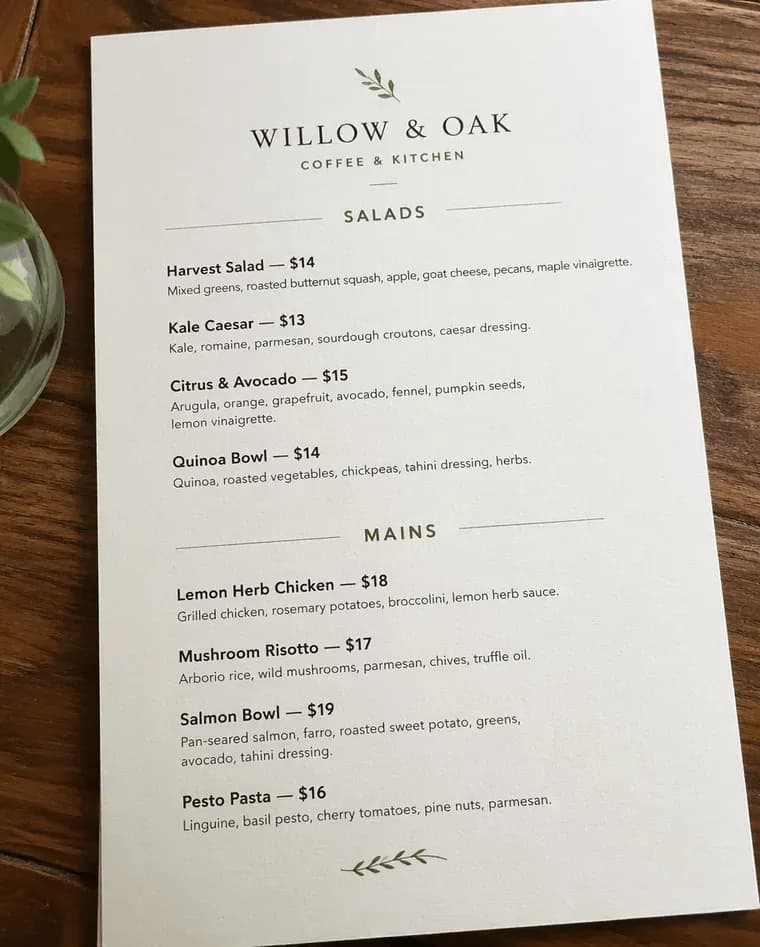
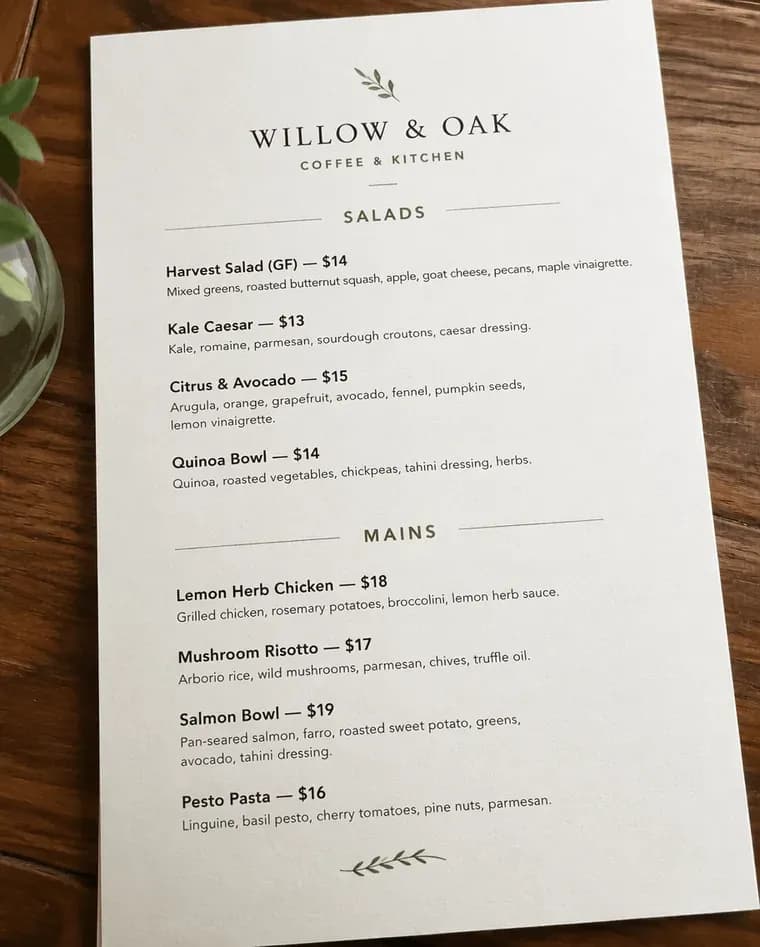
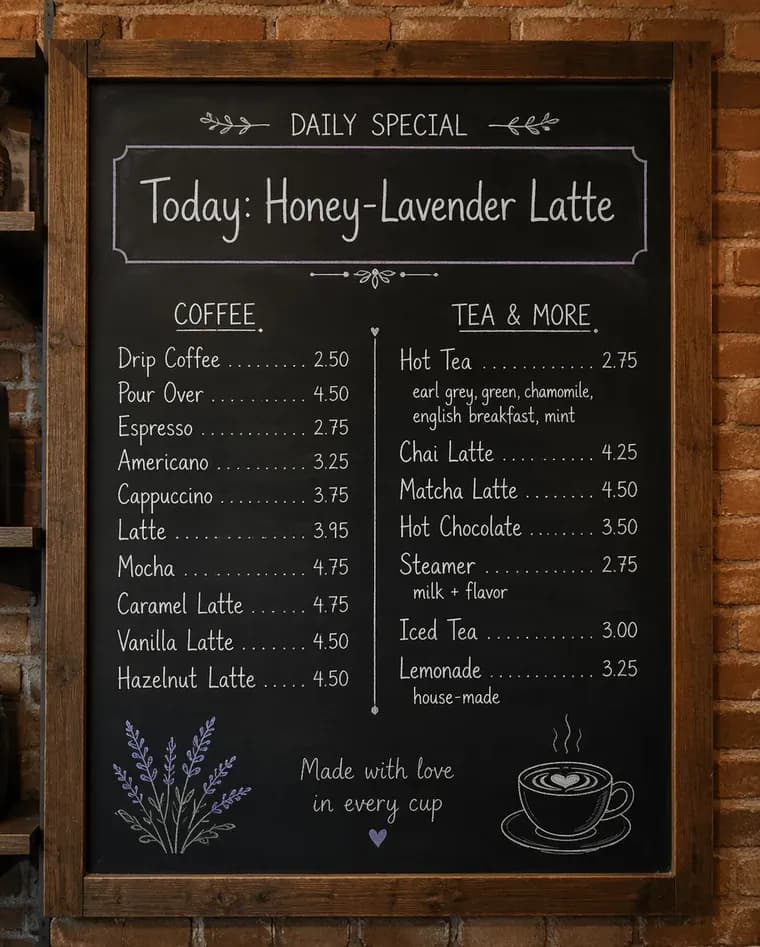
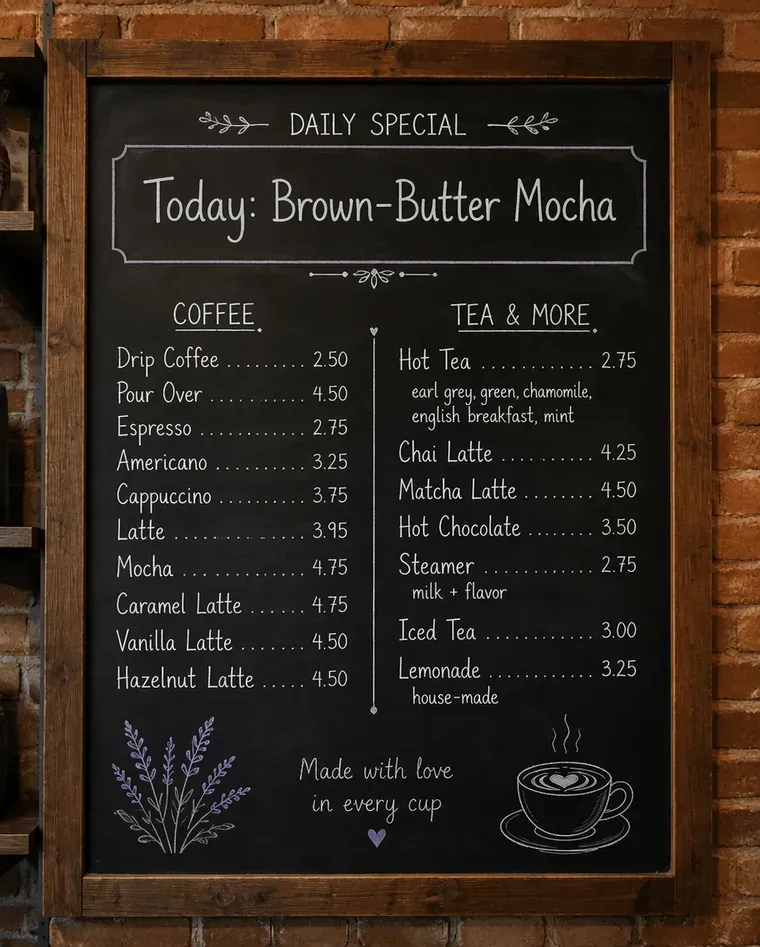
Here are two menu edits from our own case library, both made with EditTextImage. On the printed menu, “(GF)” was added to one dish; on the chalkboard, the daily special was rewritten in the board’s chalk lettering.
What our tests show for menus
Small print and prices: every tool got them right
In the poster test, all five tools changed a 24-pixel address line correctly, and in the general test all five changed “Open till 9 PM” to “10 PM” on a hand-painted sign. Numbers and short words in small type were not a problem for any of them. The difference was quality: the Gemini app returned smaller JPEGs, and its small print came back visibly softer than the original. On a menu, that is the line with the price.
One line in a long list: the rest stayed put
Two of our test jobs were menu-like lists. In one, we changed one name in a column of twelve; in the other, one line of a typewritten programme with about forty lines. In every tool that ran them, every other line came back word for word (ChatGPT’s free plan ran out before the programme). That is the main worry with AI menu edits, and in our tests it didn’t happen.
Two tools changed things nobody asked for
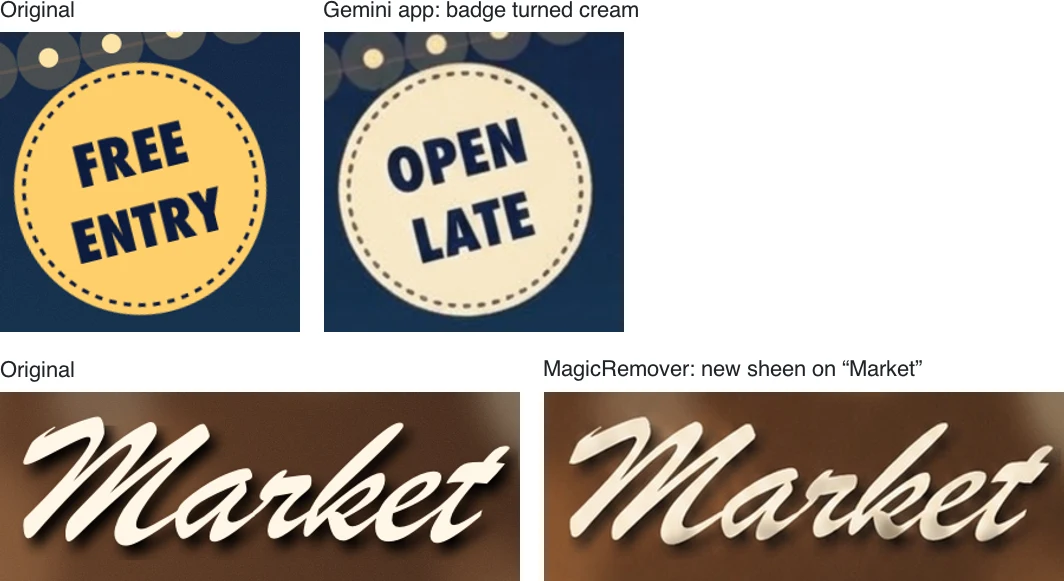
The Gemini app recoloured a yellow badge while rewording it, and MagicRemover gave a brush-script headline a glossy sheen, including a word it was told to leave alone. Neither touched the words, but on a menu with a house style either change would stand out next to the other pages.
Printed menus need the paste-back step
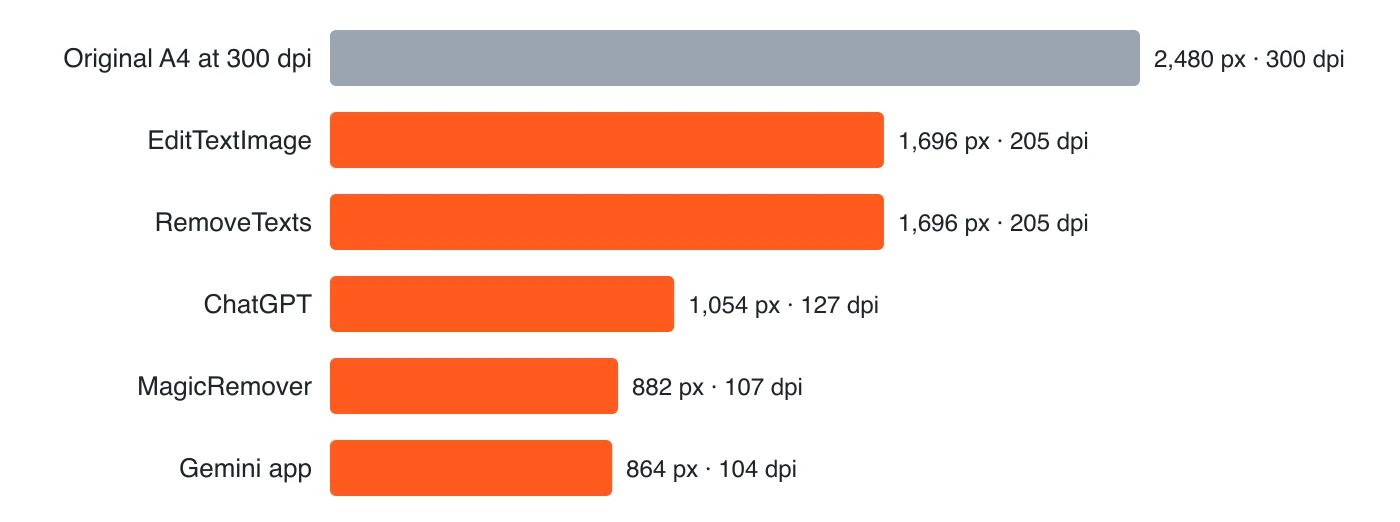
A table menu printed on A4 at 300 dpi is 2,480 pixels wide. No tool returned that. EditTextImage and RemoveTexts came closest at 1,696 pixels, about 205 dpi, but in a 2:3 frame about 5% narrower than A4. ChatGPT returned 1,054 pixels, MagicRemover 882 and Gemini 864, about 104 to 127 dpi.
For a printed menu, use the AI result for the changed line only:
- Make the edit in the AI tool and download the result.
- Open your original, full-size menu in a layer editor such as Photopea (free).
- Paste the AI result on top, scale it to line up, and mask everything except the changed line.
- Export at the original size. Only that line is at the lower resolution, so check it is sharp at the printed size.
For a digital menu board, check the size that comes back against your screen before you swap the file in; we haven’t tested 16:9 board images.
Speed
In the general test, Gemini took 10 to 18 seconds per edit, ChatGPT about 20, MagicRemover 33 to 57, EditTextImage 38 to 63 and RemoveTexts 51 to 150. For a menu with eight price changes in a find-and-replace tool, that is several minutes of waiting, still far less than reopening a design file you no longer have.
The tools for menus, one by one
EditTextImage: best for printed menus without writing prompts
You type the text as it appears and what it should say, one change per edit, in our menu editor. Every edit in both tests was right except one typo fix on a brass sign in the general test, which the second run got right. It returns the largest files, which makes the paste-back step for print easiest. Edits cost $0.22 to $0.37, with one free edit on sign-up at a smaller size. Limits: an A4 page came back in a narrower 2:3 frame, so don’t stretch it back; paste the changed line instead.
ChatGPT: best when nothing else may change
Every edit right, and no unrequested change in either test. Good for a branded menu where the house style matters. Limits: an A4 page came back 1,054 pixels wide, and the free plan stopped after five image edits in a day, fewer than eight price changes.
RemoveTexts: large files for less
The same file sizes as EditTextImage, at $0.15 to $0.32 an edit. Limits: the slowest tool in our general test, it returned one sign unchanged there, and its downloads are JPEGs named .png.
MagicRemover: cheapest for many screen edits
At 6 to 9 cents an edit, eight new prices cost well under a dollar. Limits: files are smaller than the original, and it added a sheen to script lettering in our poster test, so compare the result with the original.
Gemini app: best free option for online menus
Free, fast and right every time in our tests. Use its Download full size image button. Limits: softer small print, files about 15% smaller than the original, and it changed a colour it wasn’t asked to.
Canva and Photoshop
If your menu was built from a Canva template, edit the design itself; it is quicker and stays at full resolution. For a menu that only exists as an image, Canva’s Grab Text (Canva Pro) turns text in the image into editable text boxes, and Photoshop does the job by hand at any resolution. We compare both in our general roundup.
Before the new menu goes out
- Zoom in on every price you changed and read it digit by digit. A wrong digit looks exactly as convincing as a right one.
- Check the new prices against your till or POS, and update the same price everywhere it appears: printed menus, the website, delivery apps and menu boards.
- Treat allergen and dietary labels such as “GF” as claims, not design. Only add them once the dish meets your local rules; see the FDA’s page on gluten-free labeling and the UK government’s allergen guidance for food businesses.
- Compare the whole page with the original side by side, not just the edited line.
For a step-by-step walk-through of the other ways to update a menu, from reopening the source file to a printed sticker, see how to update prices on a menu without the design file. If your menu needs a second language for visitors, our image translator translates the whole menu in one go.
Which tool for your menu?
- Printed table menu with new prices: EditTextImage or RemoveTexts, then paste the changed lines onto the original file.
- Menu photo for social media, once: the Gemini app, checking colours and small print.
- Branded menu where the style must not drift: ChatGPT.
- Many screen-only edits on a budget: MagicRemover.
- You still have the design file: edit the file, not the image.
Frequently asked questions
What is the best AI tool to edit text on a menu?
It depends on whether the menu is printed or shown on screens. In two hands-on tests of five tools, every tool changed small print and single lines in long lists correctly without touching the other lines. For printed menus, EditTextImage and RemoveTexts return the largest files (1,696 pixels wide for an A4 page). For a menu you post online, the free Gemini app is enough. ChatGPT made no unrequested changes in either test.
Can I change the prices on a picture of a menu?
Yes. Upload the menu image to an AI text editor, type the price as it appears and the new price, and check the result zoomed in. The find-and-replace tools (EditTextImage, RemoveTexts, MagicRemover) need one edit per change, so eight new prices are eight edits. Check every digit afterwards, and make sure the new prices match your till or POS before the menu goes out.
Can ChatGPT edit a menu?
Yes. Attach the menu and quote the old and new text, for example: change "$5.50" to "$5.75" and keep everything else exactly the same. In our tests ChatGPT got every edit right and was the only tool that never changed anything it wasn't asked to. Two catches: an A4 page came back 1,054 pixels wide, about 127 dpi in print, and the free plan stopped after five image edits in a day.
Is there a free way to edit text on a menu image?
Yes. The free Gemini app got every edit right in our tests, but returned JPEGs about 15% smaller than the original, with softer small print, and once changed a colour it wasn't asked to. EditTextImage gives one free edit when you sign up, at a smaller size than paid edits. Photopea is free if you prefer to edit by hand with layers.
Can I print a menu after editing it with AI?
Yes, but not straight from the AI result if the menu is A4 or larger. The largest file in our tests was 1,696 pixels wide for an A4 page, about 205 dpi, against the usual 300 dpi. Paste the edited line back onto your original full-size file in a layer editor such as Photopea, and print that.
How do I add a gluten-free or allergen label to a menu image?
Edit the dish line and type the new version with the label, for example "Harvest Salad" to "Harvest Salad (GF)". An AI tool will add the letters in the menu's own type without moving the other lines. The label is a food-safety claim, not a design change, so only add it once you have confirmed the dish meets your local rules for that claim.
Fix it in your browser — free, no Photoshop
EditTextImage replaces or repairs text directly on a finished image while keeping the original font, color and background intact. First edit is free.